Set up groups, such as groups of admissions officers, in SITS:Vision. You can then assign the groups to roles in Admissions.
Before you begin
You must have the permissions required to complete this task and the required resources.
Permissions
You must have an account in SITS:Vision with permissions to use the Role group definition (RGD).
Resources
This task requires that you have a copy of the Tribal document Edge Tenant and Core Branding Request.docx, which is available on Tribal Communities. On Tribal Communities, go to Community and thenKnowledge baseand thenTribal Edge platform knowledge baseand thenGeneral Informationand thenAccessing Tribal Edge Tenants (Environments).
Add the groups in SITS:Vision
SITS:Vision has several Tribal Platform groups defined, such as the EdgeAdministrator group and groups for Admissions, Data Engine, and Submissions. You can also create your own groups in SITS:Vision. Tribal Platform initially has only the EdgeAdministrator group. Therefore, you must add the other groups used in SITS:Vision in Tribal Platform.
For more information, go to the SITS:Vision Manualand thenMenu Systemand thenTechnical Guideand thenIntegration Guideand thenTribal Edgeand thenEdge Roles.
Add the groups in SITS:Vision as follows:
-
Log in to SITS:Vision using an account with permissions to use the Role group definition (RGD).
-
Open a role group definition record. Go to the Role group definition (RGD) screen, and then set Edge role to EdgeAdministrator.
Role group definition with the Tribal Platform role EdgeAdministrator 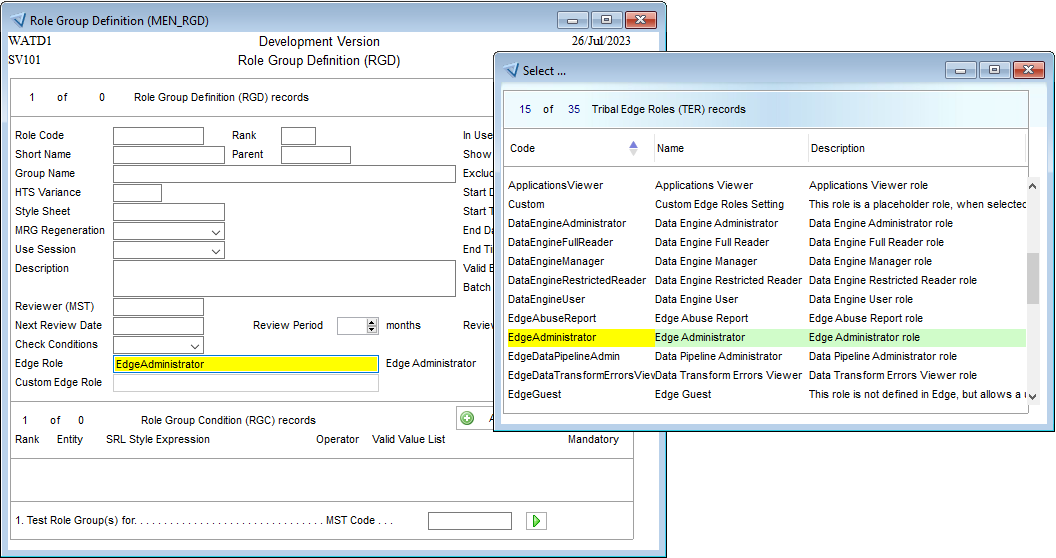
-
Edit the Role code, Short name and other related fields as required and then add a Role group conditions (RGC) to assign the appropriate users to the EdgeAdministrator group.
-
Save and close the role group definition.
-
Repeat steps 2 to 5 to add the groups required by your institution. For example, ApplicationsManager, ApplicationsSupervisor, and DataEngineManager.
Next steps
Assign the groups to roles in authorisation areas in Admissions. For more information, go to How to add groups and assign groups to roles.