Add custom roles to authorisation areas or globally to all authorisation areas to meet the requirements of your institution.
Before you begin
Review the permissions that are specific to this task in the table Permissions required for this task. If you cannot perform the actions of this task, contact your system administrator.
|
Authorisation area |
Permission name |
|---|---|
|
Admin |
Manage authorisation |
Add custom roles
Add custom roles for a specific authorisation area or a system-wide role in all authorisation areas.
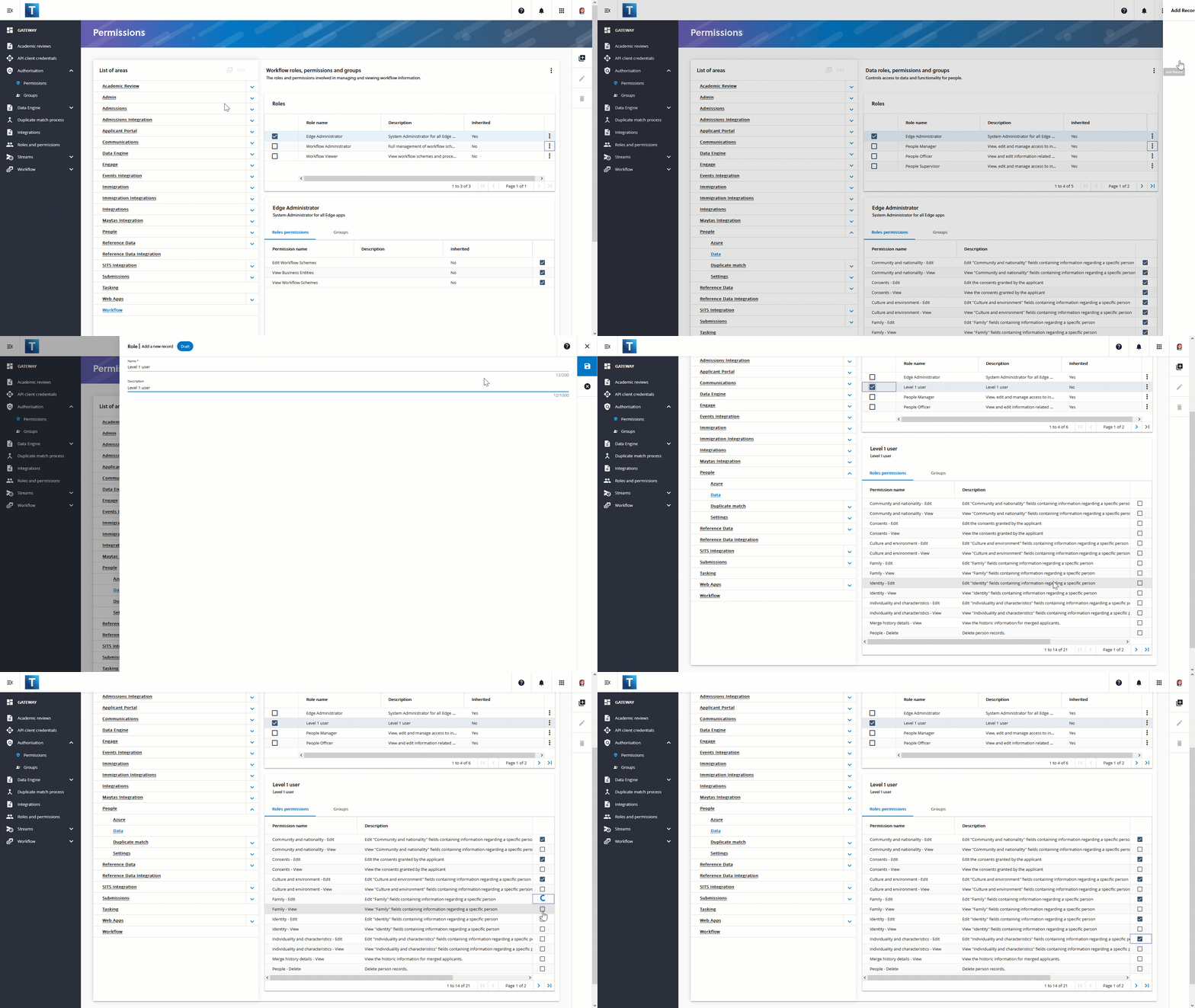
Add a custom role as follows:
-
Log in to Tribal Platform using an account with permissions to manage authorisations, such as an account in the EdgeAdministrator group.
-
On System admin, go to Authorisation and then Permissions.
-
Add a role for a specific authorisation area or a system-wide role in all authorisation areas as follows:
-
For a specific authorisation area: select the required authorisation area and then select
 and then Role. Then, enter the role's Name and Description.
 -
For system-wide role in all authorisation: select
 and then select and then Role. Then, define the role's Name and Description.
-
-
Select the permissions for the role as required.
The image Add a custom role shows how to add the custom role Level 1 user to the Admissions area Applications.