Set up users in Callista to map users to groups using Callista Edge role grants. Users can then log in to Tribal Platform using their Callista account and have the permissions defined by the role their group is assigned to.
Before you begin
You must have the permissions required to complete this task and the required resources.
Permissions
You require the following permissions:
-
A Callista account with permissions to use the SECF0063 (Maintain security role function grants) and SECF0087 (Maintain security role Edge role grants) forms or the SECF0062 (Maintain person function grants) and SECF0085 (Maintain person Edge role grants) forms.
-
An Edge role in SECF0089 (Maintain Edge roles) that is going to be mapped to an Edge group. For example, Edge applications supervisors.
Resources
This task requires that you have a copy of the Tribal document Edge Tenant and Core Branding Request.docx, which is available on Tribal Communities. On Tribal Communities, go to Community and thenKnowledge baseand thenTribal Edge platform knowledge baseand thenGeneral Informationand thenAccessing Tribal Edge Tenants (Environments).
Set up users in Callista
Set up the users in Callista as follows:
-
Find the Callista security role to map to the Edge group. On Callista, go to the SECF0063 (Maintain security role function grants) form, then select query and search for the security role that you want to map the Edge group to. For example,
EDGE_APP_SUP(Edge applications supervisors), as shown in the image Find security role.Find security role 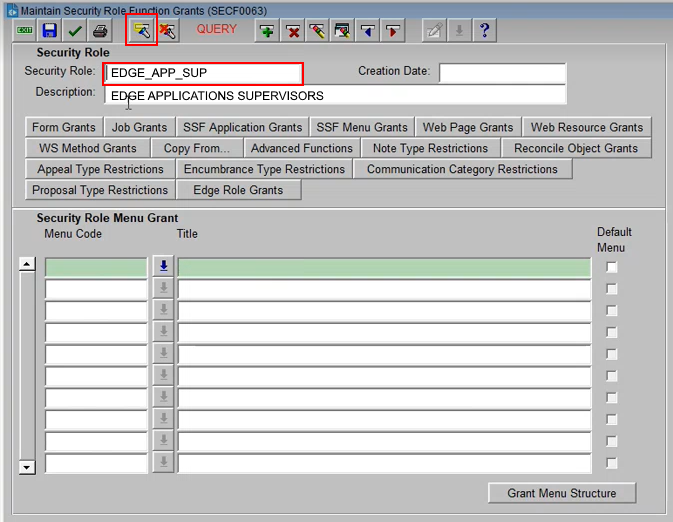
-
Open the Edge role grants form. On the SECF0063 (Maintain security role function grants) form, select Edge Role Grants to open the SECF0087 (Maintain security role Edge role grants) form.
-
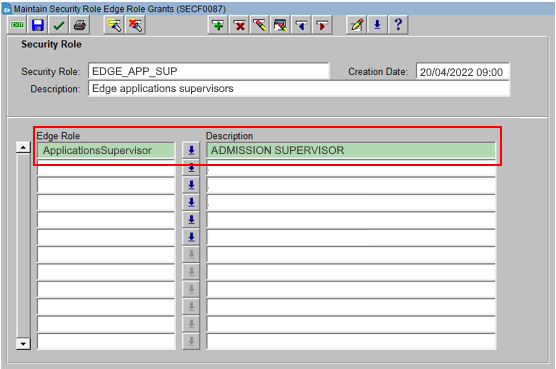
Assign the required roles to the Callista security role. On the SECF0087 (Maintain security role Edge role grants) form, select the required Edge group for the user, such as ApplicationsSupervisor and then save the changes.
The image Callista security roles shows the EDGE_APP_SUP security role with the ApplicationsSupervisor Edge group assigned.
-
Optionally, you can assign Edge groups to individual Callista users. Go to the SECF0062 (Maintain person function grants) form and then select Edge Role Grants to open the SECF0085 (Maintain person Edge role grants) form.
Next steps
Assign the groups to roles in authorisation areas in Admissions. For more information, go to How to add groups and assign groups to roles.